Running retro Windows on old hardware: installers, drivers and what still works
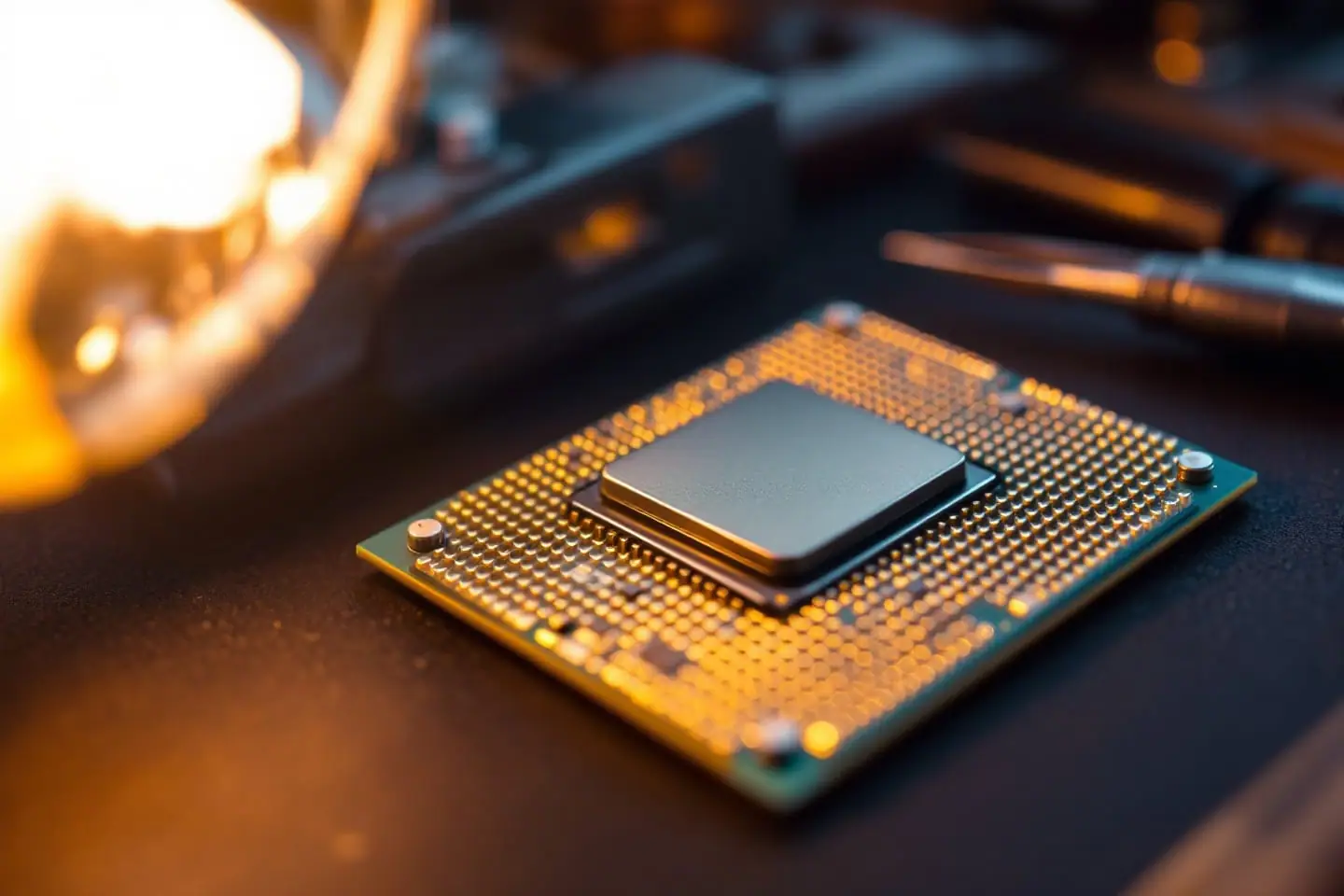
A Core 2 desktop sits right where three generations of Windows overlap. Boards from 2006 to 2009 shipped with XP drivers, were sold with Vista, and most of them run Windows 7 well. That makes them the natural home for software that never moved on: old games that newer Windows will not run, scanner and lab software tied to XP, or a period-correct build that simply feels right with the old start menu. Getting one of these systems installed in 2026 is mostly a matter of knowing three things: how the disk controller is set up, where the drivers went, and what Microsoft still does and does not provide.
If you are still deciding whether the hardware is worth the effort, our look at what a Core 2 Quad PC is still useful for covers that side.
Which Windows fits which job
The three versions differ more in storage and USB support than in looks. Dates below are from Microsoft's lifecycle pages; the feature rows come from Microsoft's documentation and Wikipedia's summaries of it.
| Windows XP | Windows Vista | Windows 7 | |
|---|---|---|---|
| Released | 2001 | 2007 | October 2009 |
| Extended support ended | April 2014 | April 2017 | January 2020 |
| Built-in AHCI driver | No | Yes | Yes |
| Built-in USB 3.0 driver | No | No | No (vendor drivers only) |
| NVMe | No | No | Through update KB2990941 (SP1 required) |
| TRIM for SSDs | No | No | Yes |
For Windows 7, Microsoft also sold Extended Security Updates to businesses through volume licensing programs until January 2023. None of that reaches a home install today. Practically: pick XP when a specific program or game needs it, and Windows 7 for everything else you want from that era. Vista rarely wins on its own merits.
AHCI or IDE mode: the first decision
SATA controllers on these boards usually offer two or three modes in the BIOS setup, under names such as IDE, Compatible, Legacy, AHCI and RAID. In IDE mode the controller pretends to be an old parallel ATA controller, which every version of Windows understands. AHCI is the native SATA mode: it enables features such as hot swapping and native command queuing, and Wikipedia notes that IDE emulation limits each emulated controller to four devices.
Windows XP has no AHCI driver of its own. Boot the XP installer on a controller in AHCI mode and it cannot see the disk, because it has no driver for the controller. You have three ways around that.
Option 1: switch the controller to IDE mode
The simplest fix. Set the SATA mode to IDE (or whatever your board calls it), install XP, and accept the loss of AHCI features. For a retro machine running old software from an SSD or a spare hard drive, the difference is rarely noticeable.
Option 2: press F6 and load the driver from a floppy
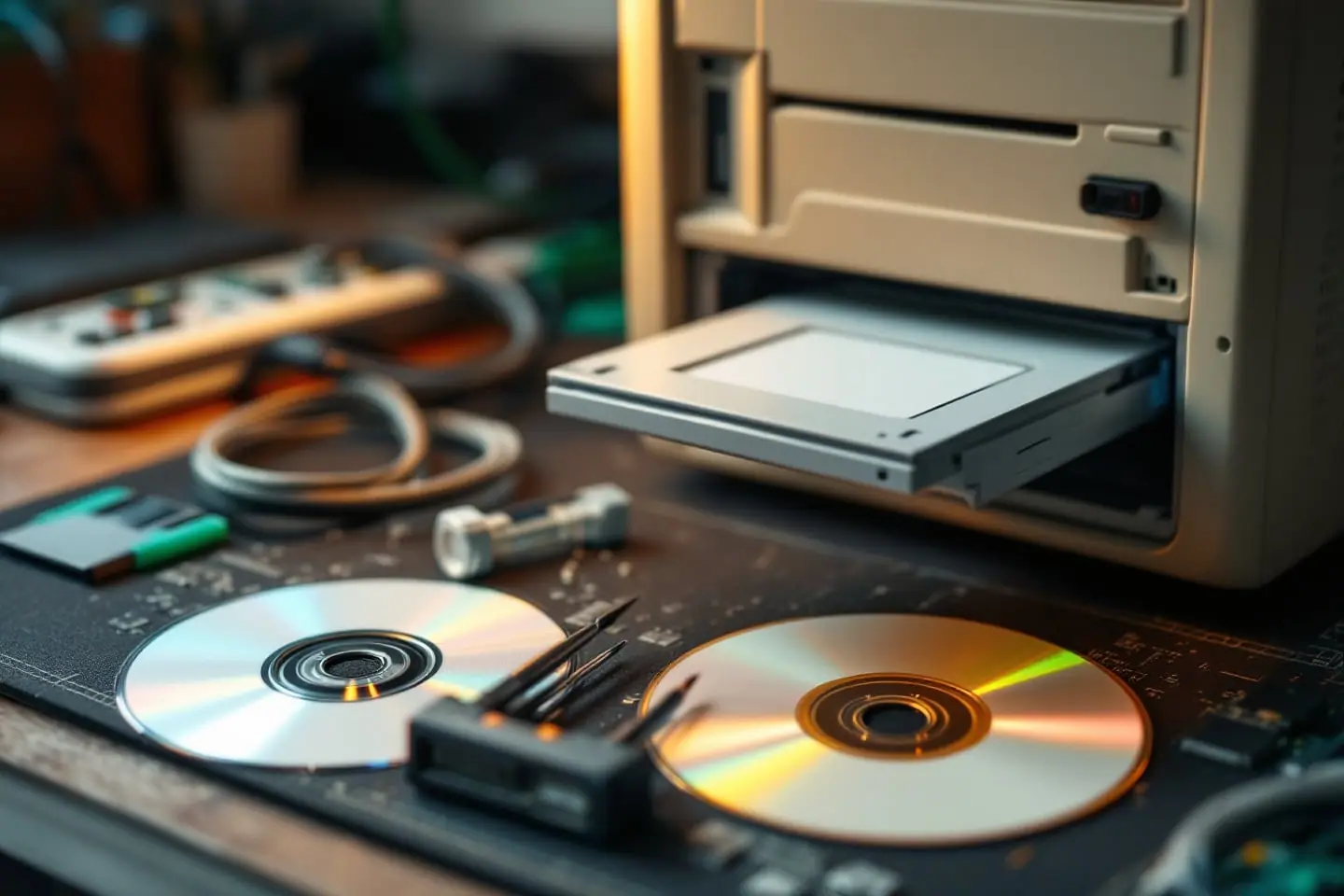
XP's text-mode setup can pause early and ask for a third-party storage or RAID driver on a floppy disk, the famous "press F6" prompt. You need the chipset maker's AHCI driver for your exact controller, extracted to a floppy, and a floppy drive the installer can read. That last part is the catch on boards without a floppy connector.
Option 3: slipstream the driver with nLite
nLite builds a customized XP installation disc. Among other things, it can integrate service packs and add device drivers, so the AHCI driver is simply part of the installer and no floppy is needed. The result can be burned to CD or saved as an ISO image. Slipstreaming Service Pack 3 at the same time saves a round of updates after installation.
Vista and 7: choose before you install
Vista and 7 include an AHCI driver, but they only enable it at boot if the controller was in AHCI mode when Windows was installed. Install in IDE mode, switch to AHCI later, and the result is a blue screen at boot and a reboot loop. Wikipedia describes the fix: switch back to IDE, boot Windows, set the msahci driver to start at boot in the registry, then change the BIOS setting. It is far easier to set AHCI in the BIOS before installing.
A worked example
Say you have a P45 board with an ICH10R southbridge, a SATA SSD and a plan to dual-boot XP and Windows 7. Both systems share one controller, so they must agree on its mode:
- If XP is installed from a plain disc, the controller has to stay in IDE mode, and Windows 7 should also be installed in IDE mode so neither ever has to switch.
- If you slipstream the Intel AHCI driver into an XP disc with nLite, the controller can be in AHCI mode for both, and both get the native features.
Option 2 is more work up front and nicer to live with. Either way, write the mode down. On many boards a CMOS reset quietly restores the default, which may not be the mode you installed with.
Activation in 2026
Windows XP introduced product activation. A retail or boxed OEM copy must be activated within 30 days, over the internet or by phone, and after the grace period XP refuses to run until it is activated. Changing enough hardware forces a fresh activation.
In 2014, Microsoft's end-of-support FAQ said XP could still be installed and activated after support ended, and that retail installs would still need activation. That wording survives in replies on Microsoft's own community forum. Microsoft does not appear to publish a current statement. In February 2026, an independent advisor answering on Microsoft Q&A wrote that the XP activation servers have been retired and that neither the website nor the phone system returns a confirmation ID any more. That is a volunteer's answer, not a Microsoft notice, and we could not find an official announcement either way. Plan as if a fresh retail XP install cannot be activated.
Two legitimate situations avoid the problem:
- Branded PCs with the maker's own recovery media. Copies preinstalled by an OEM such as Dell or HP used System Locked Pre-installation: Windows checks for information the manufacturer stored in the BIOS and activates itself without contacting Microsoft. Because the check is local, reinstalling with that maker's original media on that maker's machine should still activate without contacting Microsoft.
- Volume license media. Volume-licensed copies of XP did not require activation at all. That only helps if the license is genuinely yours, for example a business or school machine retired with its license.
We do not cover activation workarounds. For Vista and 7, we found no official statement on whether activation still accepts those keys, so check before you depend on it.
Drivers: where they went
A fresh XP or 7 install on a Core 2 board typically lacks drivers for the chipset, network, audio and graphics. In order of reliability, look here:
- The driver disc that came with the board. If you still have it, it is the exact set that was tested for that board.
- The board maker's support page. Some large brands still host downloads for boards they stopped selling long ago. You need the exact model and revision; our guide to checking whether a motherboard supports a processor shows how to read it from the board, the BIOS screen or software.
- The Wayback Machine at web.archive.org. Paste the old support page address in and look for a capture from the years the board was current. Archived pages sometimes link to archived copies of the driver files themselves. Check the digital signature in the file's properties before running anything.
- Community knowledge. Forums such as VOGONS, where retro PC owners compare driver versions, are where you find out which graphics driver release works best with a given card on XP. Treat downloads posted there with the same caution as any other unofficial file.
Most installers are executables, but some older driver packages only ship as INF files that you point Device Manager at. If a package unpacks into a folder of files and you would rather work from a prompt, our guide to opening a command prompt in a folder saves some clicking.
Keep it offline, or close to it
XP has had no security updates since April 2014, Vista since April 2017 and Windows 7 since January 2020 for home users. Microsoft's own XP end-of-support page warned that an unsupported PC would still work but become more vulnerable, and that antivirus software cannot make up for missing security updates. Treat these machines accordingly:
- Do not use them for web browsing, email or anything with a password worth stealing.
- Move files over with a USB stick from a machine you trust, or a network share you enable only while copying.
- If the machine must be on a network, keep it behind your router's firewall, never directly exposed to the internet, and switch off file sharing when it is not needed.
- Keep a disk image of the finished, working install. Reinstalling XP and hunting down every driver again is the slow part.
Windows 7's gaps on these boards
Windows 7 is the comfortable choice for Core 2 hardware, but two newer storage and USB standards are missing.
USB 3.0 support was not included in Windows 7 because the standard was finalized too late; Windows 8 was the first Microsoft release with a built-in USB 3.0 driver. On most Core 2 boards that hardly matters, because the chipset's own ports are USB 2.0 (Intel's first chipsets with integrated USB 3.0 arrived in 2012). It matters if you add a USB 3.0 card, which needs the card's chip vendor driver.
NVMe is similar. Microsoft's KB2990941 update adds a native NVMe driver to Windows 7 SP1, with a follow-up fix (KB3087873) for a stop error it can cause. But a Core 2 era BIOS predates NVMe entirely, so an NVMe drive on a PCIe adapter is at best a secondary drive, not a boot drive. A SATA SSD is the realistic upgrade; our SATA SSD upgrade guide covers that.
Linux as the alternative
If what you want is a useful machine rather than period software, a current Linux distribution often makes more sense. AHCI has been supported out of the box since kernel 2.6.19 and USB 3.0 since 2.6.31, and you get security updates. One caveat: Core 2 processors only meet the original x86-64 baseline (often called x86-64-v1). Before downloading a distribution, check that it still targets that baseline rather than a newer feature level. On a running Linux system with glibc 2.33 or later, this lists the levels your CPU supports:
/lib64/ld-linux-x86-64.so.2 --help | tail -n 5
A common compromise is a dual boot: Linux for anything that touches the internet, and XP or 7 on its own partition for the old software, kept offline.
Whichever way you go, stick a strip of masking tape inside the side panel with the SATA mode, the Windows version and the date of your disk image. The next person to open the case, probably you, will thank you.
Sources and further reading
- Microsoft Learn, lifecycle pages for Windows XP, Windows Vista and Windows 7
- Microsoft Support, Windows XP end of support (archived 2016 copy)
- Microsoft Support, Update to add native driver support in NVM Express in Windows 7 and Windows Server 2008 R2 (KB2990941)
- Microsoft community answers (volunteers, not official statements): Activate Windows XP from installation ID (2026) and XP needs reactivation but support has ended (2014, quotes Microsoft's FAQ)
- Wikipedia, Advanced Host Controller Interface (operating modes, XP support, switching modes after install)
- Wikipedia, Microsoft Product Activation (grace period, phone activation, OEM SLP, volume licensing)
- Wikipedia, Software remastering (the nLite section) and Windows Setup (the F6 driver prompt)
- Wikipedia, USB 3.0 (operating system support) and x86-64 (microarchitecture levels)

Ben keeps the web design corner: beginner HTML, CSS and JavaScript lessons with code you can paste and run. He also writes the general tech notes, usually after untangling something that should have been simple.