Cleaning dust out of an old PC without breaking anything
An old desktop that has run for years under a desk collects a surprising amount of grey felt. Most of it ends up exactly where it does the most harm: packed into the face of the CPU heatsink, wrapped around fan hubs and pressed against the power supply grille. The machine gets louder as the fans spin up to compensate, then hotter, and eventually it starts shutting down under load. Late October is a good moment to deal with it, before the heating season dries the air and the PC spends long evenings working.
The job itself is simple. The care is all in the order you do things and the few things you never do.
From the Parts bin
 iFixit anti-static wrist strapESDGrab it on Amazon
 iFixit Mako 64-bit precision driver kitToolsGrab it on Amazon
 Samsung 870 EVO 500 GB SATA SSDSATAGrab it on Amazon
Parts links can earn us a commission. As an Amazon Associate I earn from qualifying purchases. See the whole bin.
Why dust matters more on an old machine
Dust works as an insulating blanket. Wikipedia's computer fan article, summarizing the usual engineering view, says the insulating effect of dust "will rapidly degrade the heatsink's ability to dissipate heat." A heatsink is only as good as the air that moves through its fins, and a layer of felt on the intake face cuts that airflow long before you can see daylight blocked.
Older desktops are hit harder for two reasons. Plenty of cases from that era had no front filters at all, so everything the intake fan pulled in landed on the parts. And the electrolytic capacitors on the board and in the power supply age faster the hotter they run, so a clogged machine is wearing itself out quietly. Our guide to choosing a power supply for an older PC explains that heat and lifetime relationship in more detail.
HP's guide to cleaning a computer tower suggests once a year as a rule of thumb, and roughly every six months if the room is dusty or if there are smokers or pets in the house. A machine that has not been opened in five years is overdue no matter where it lives.
Before the side panel comes off
Pick the place first. Dust you blow out of a PC goes into the room and into your lungs, so a garage, a porch or a spot by an open window beats the living room carpet. HP recommends a well-ventilated space and a dust mask, which is sensible advice for anyone with allergies and still sensible for everyone else.
Then get the static side right. A dry autumn room is where static charge builds most easily, and the habits in our anti-static basics apply here too: a wrist strap clipped to bare case metal, cotton clothing, a hard floor if you have one. Lay the case on its side on a table so loosened dust falls out rather than down into the board, and so the heavy cooler is not hanging sideways off the socket while you work.
Gather the tools before you start:
- A can of compressed duster or a cordless electric duster
- A wooden pencil, chopstick or plastic spudger for holding fans
- A soft, dry paintbrush for felt mats that air alone will not lift
- Cotton swabs and 99 percent isopropyl alcohol for greasy fan blades
- A small screwdriver for filters and fan grilles
- A flashlight
These suggestions come from specifications and published reviews rather than any hands-on testing of our own. An electric duster avoids the cold liquid and propellant of canned air, and a wired strap with a resistor in its cord covers the static side.
Canned air or an electric duster
Both work, and each has a catch.
| Canned duster | Electric duster | |
|---|---|---|
| What it blows | Liquefied gas boiling off, not air | Room air pushed by a motor |
| Weak point | Cools fast in long bursts, sprays liquid if tilted | Noise, battery runtime, a warm exhaust |
| Safety notes | Some blends use butane or propane, which burn; never inhale | Keep the nozzle off parts and away from loose screws |
| Best use | Short bursts into tight corners | Long sessions, whole cases, repeated use |
Wikipedia's gas duster article makes the first row clear: the cans "do not actually contain air". They hold liquefied gases such as 1,1-difluoroethane or tetrafluoroethane, and holding a can upside down can put liquid on the surface you are aiming at, which chills it sharply and can give you a cold burn. Dell's support page on overheating says the same thing from the other direction: hold the can upright to avoid moisture buildup. Use short bursts and let the can warm up between them.
An electric blower has no propellant and no cold spray, which makes it the calmer choice for a big job. Whichever you use, the dust has to go somewhere, so give the room time to settle before you move back in. Keep canned duster away from flames and pilot lights.
The order of work
Work from the outside in, and from the places dust collects most to the places it collects least. That way each step pushes dirt out of the case, not deeper into it.
- Remove and clean any filters. Front and bottom filters usually unclip or slide out. Clean them away from the PC: blow them out, rinse plastic mesh in water if the maker allows it, and let them dry fully before refitting.
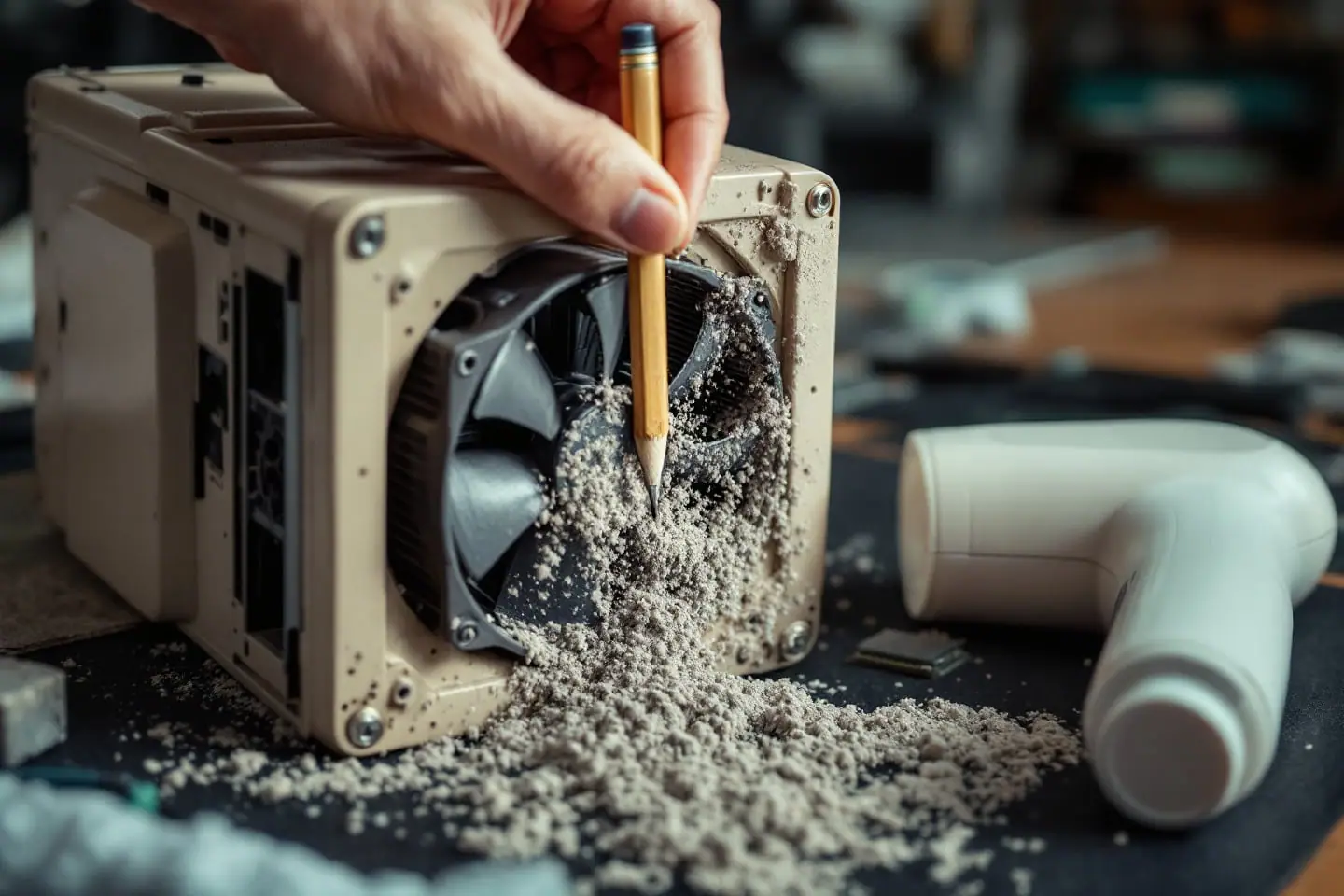
- Hold the fans still. This is the rule people skip. Push a pencil or chopstick gently against a fan blade or through the frame before you aim air at it. HP's guide says to hold the blades in place with a pencil or pen, and the usual reasoning is simple: a jet of air can spin a fan well past its rated speed, which is hard on the bearing.
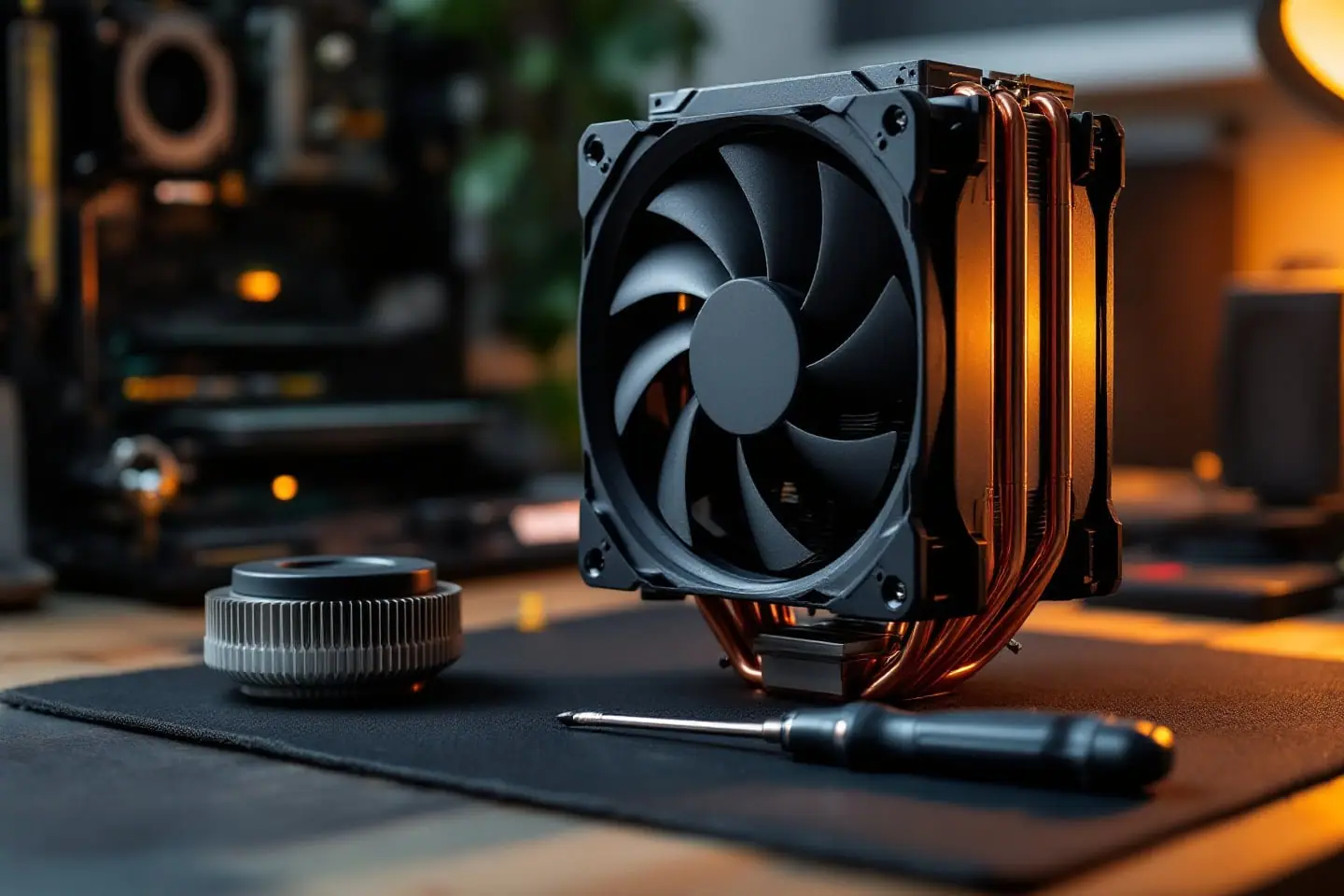
- Blow through the CPU heatsink. On a tower cooler, dust packs onto the face where air enters. Hold the fan, then aim from the exhaust side back through the fins so the mat lifts off the intake face and falls away. On the flat stock coolers common on LGA 775 boards, the dust sits under the fan, between the fan and the fins; blow down through the fan blades at an angle while holding them, and loosen stubborn felt with the dry brush.
- Clear the graphics card. Hold each fan, blow through the shroud from both ends, and leave the shroud on. Older cards with a single blower fan collect felt at the fin stack just behind the fan.
- Do the power supply from outside. Blow through its rear grille and its intake grille (usually on the bottom or top) while the fan is held still with a wooden pencil through the guard, never a screwdriver. HP calls out the PSU vents as the place to be especially thorough, and also says never to open the PSU or bring it into contact with anything metallic.
- Finish the case. Chase what is left from the drive cages, the floor and the case fans toward the nearest opening, then blow out the front panel intake from outside.
Fan blades sometimes carry a greasy film that air will not shift. A cotton swab dampened with isopropyl alcohol cleans them; squeeze it out first so nothing drips into the hub, and never spray any liquid inside the case.
Why not just vacuum it?
Because a household vacuum is the wrong tool inside a PC. Dell's guidance is blunt: vacuum cleaners can generate static electricity. The plastic hose and nozzle rub against dust and air at speed, which is a fine way to build charge, and the nozzle tends to touch whatever it is pointed at. Suction also lifts loose jumpers, small screws and the odd capacitor that was already hanging by one leg.
HP does not recommend vacuuming either, especially the first time, and says that if you do, keep the hose hovering above the parts rather than touching them. A vacuum is fine for the filters once they are out of the case and for the floor afterwards. Inside the case, use air and a brush.
What to check while it is open
A clean, well-lit board shows things the dust was hiding. Before you close it, use the flashlight and look for these:
- Capacitors. The cylinders around the CPU socket should have flat tops. A domed top, a split vent or brown crust at the base is a failed or failing capacitor, and the board is on borrowed time.
- Fans. Spin each one gently by hand. It should turn freely and coast to a stop. Grinding, a wobble or a blade that stops dead points to a worn bearing, and a fan is cheap to replace compared with what it cools.
- The cooler mounting. Push pins on stock LGA 775 coolers sometimes work loose. Each corner should be fully latched, and the cooler should not rock on the socket.
- Thermal paste. If temperatures were high before cleaning and stay high after, the paste under the cooler may have dried out. Our step-by-step guide to repasting a CPU covers the job, and how much thermal paste to use covers the part people get wrong.
- Cables. Look for cables resting on fan blades or blocking the cooler intake, and tie them back.
- Power supply. Through the grille, its fan should spin freely. A burnt smell, a rattle or visible bulging inside is a reason to replace it rather than clean it.
Closing up and the first boot
Refit the filters dry, put the side panel back, reconnect the mains cable and switch the supply on at the rear. On the first boot, go into the BIOS setup screen and watch the hardware monitor page for a minute: the CPU temperature should settle and every fan you cleaned should show a speed reading. Then let the machine run something demanding for ten minutes and listen. A PC that has been cleaned properly is usually quieter than it was, because the fans no longer have to race to move air through felt.
If it is not, the heatsink face is where to look first. Dust that has been there long enough sometimes forms a mat that air flattens rather than removes, and a dry brush across the fins finishes the job.
Sources and further reading
- HP Tech Takes: How to clean your computer tower (frequency, holding fan blades, PSU vents, vacuum warning)
- Dell Support: How to prevent overheating: tips for cooling your PC or laptop (dust in vents, upright cans, vacuums and static)
- Wikipedia: Gas duster, for propellants and the inverted-can hazard
- Wikipedia: Computer fan, for background on bearings, filters and dust on heatsinks

Ananya writes about builds and upgrades: power supplies, storage, memory and the order to do things in. She has a soft spot for reviving family PCs and a firm view that the cheapest upgrade is the one you can return.