The SATA SSD upgrade for old desktops, done properly
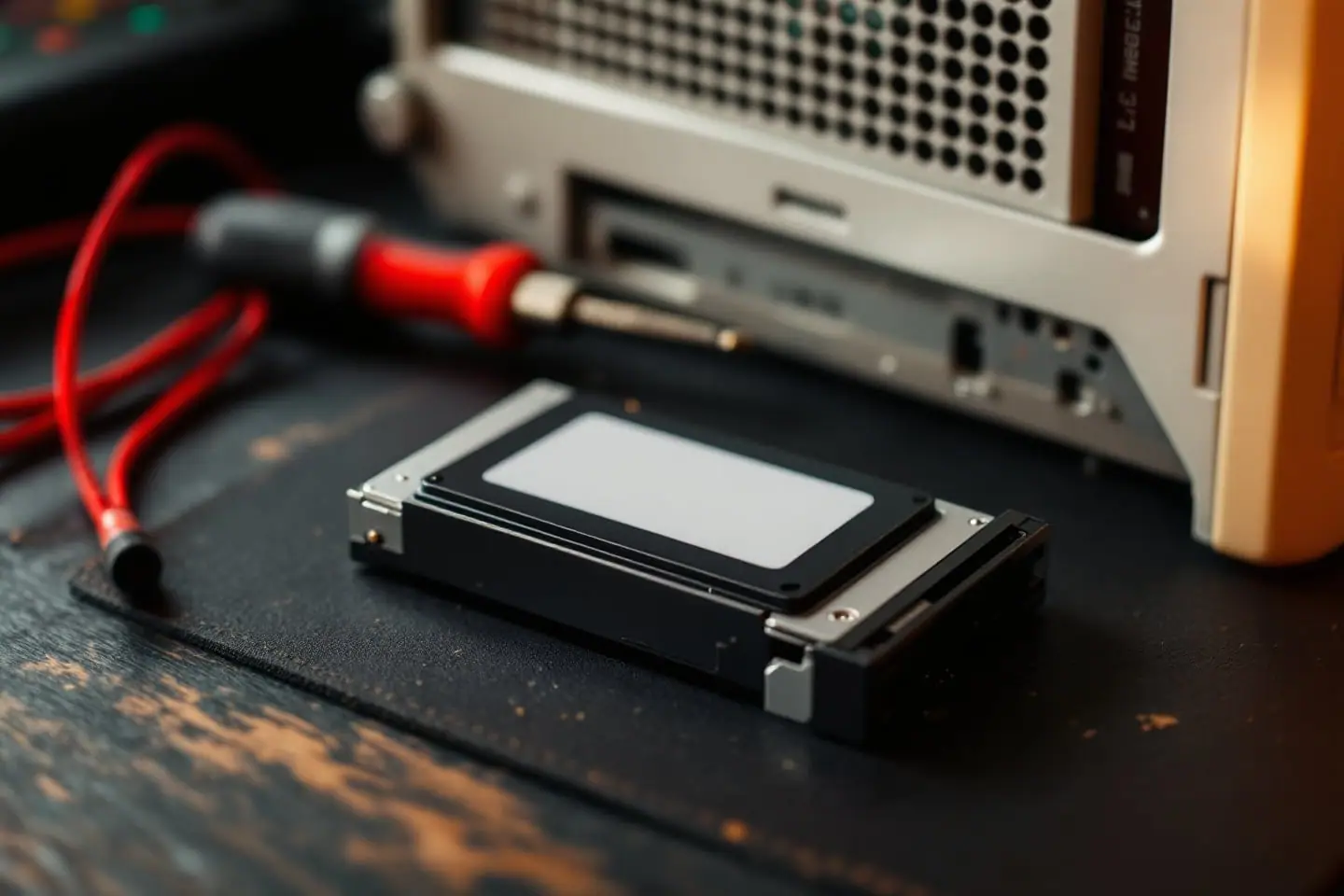
If an old desktop feels slow, the processor usually gets the blame. Most of the time the real culprit is the hard drive. A Core 2 Quad that takes two minutes to settle after boot is mostly sitting idle, waiting for a spinning platter to deliver thousands of small files scattered across the disk. Swap that drive for a SATA SSD and the same machine boots, launches programs and installs updates in a fraction of the time, with no change to the CPU, memory or board.
Where the time actually goes
A hard drive has to move a head to the right track and then wait for the right sector to spin around underneath it. You can work out the waiting part by hand. A 7,200 rpm drive turns 120 times a second, so one revolution takes 1 / 120 = 8.33 ms. On average the sector you want is half a turn away, which is about 4.2 ms of rotational latency before the head seek even counts. Add a few milliseconds of seek and a single random read costs somewhere in the high single digits of milliseconds. Wikipedia's SSD article, summarizing published figures, puts HDD random access between roughly 3 and 12 ms and consumer SSDs at a fraction of a millisecond.
Booting Windows is thousands of those small, scattered reads. A drive that answers each one twenty or more times sooner changes how the whole machine feels, whatever the speed of the cable.
SATA 3 Gb/s ports: what they cap and what they don't
Most Core 2 era boards with Intel chipsets use an ICH7, ICH8, ICH9 or ICH10 southbridge, and all of those run their SATA ports at 3 Gb/s (SATA revision 2.x). Wikipedia's I/O Controller Hub article lists the ICH10, launched with the P45 and P43 in 2008, as six SATA 3 Gb/s ports. If you are not sure what your board uses, our guide to checking what your motherboard supports shows how to find the exact model and chipset, and the chipset table on page 2 of the LGA 771 guide lists the common ones.
SATA uses 8b/10b encoding: every 8 data bits travel as 10 line bits. That is where the familiar numbers come from:
| SATA revision | Line rate | After 8b/10b | Usable ceiling |
|---|---|---|---|
| 1.0 | 1.5 Gb/s | 1.2 Gb/s | 150 MB/s |
| 2.x | 3 Gb/s | 2.4 Gb/s | 300 MB/s |
| 3.x | 6 Gb/s | 4.8 Gb/s | 600 MB/s |
A current SATA SSD is built for the 6 Gb/s link, and SATA is backward compatible, so it simply negotiates down to 3 Gb/s on an older board. What you lose is large sequential transfers: copying a big video file or an ISO tops out a little under 300 MB/s instead of close to the drive's rated speed. What you keep is the latency advantage, because a 4 KB random read comes nowhere near filling even a 1.5 Gb/s link. For booting, browsing and office work, the 3 Gb/s port is rarely the bottleneck you notice.
Two practical notes. First, plug the SSD into a port driven by the Intel chipset, not an extra port from a third-party controller chip; the board manual shows which is which. Second, an add-in SATA 6 Gb/s card is not an automatic win on these boards. The ICH10 provides PCI Express 1.1 lanes, and a PCIe 1.x lane runs at 2.5 GT/s with the same 8b/10b encoding, which is 250 MB/s per direction. A one-lane card in such a slot is slower on paper than the onboard 3 Gb/s port, and booting from it depends on the card's own firmware.
AHCI or IDE mode
The SATA controller on most of these chipsets can present itself in two ways. IDE mode (some BIOS screens say legacy or combined) emulates an old parallel ATA controller so that operating systems without a SATA driver can still see the disk. AHCI is the native interface Intel defined for SATA controllers; it exposes native command queuing and hot plugging, and it is the mode you want for an SSD on any Windows from Vista onward or on Linux.
Not every chipset offers the choice. Wikipedia's ICH summary, drawn from Intel's product listings, notes that the base ICH7 and base ICH9 parts officially lack AHCI support; on the desktop it is the R and DH variants (plus the ICH9DO) that have it. On a budget board with a base southbridge you may find no AHCI option at all. That is not a disaster: the SSD still works in IDE mode, and with Microsoft's own drivers Windows 7 sends TRIM in both modes.
Prepare Windows before you flip the switch
Microsoft's troubleshooting article for stop error 7B (INACCESSIBLE_BOOT_DEVICE) lists a change to the storage controller mode in the BIOS among its causes. During setup, Windows disables storage drivers it does not need, so an install made in IDE mode has its AHCI driver switched off, and after the BIOS change it cannot load a driver for its own boot disk.
For Windows Vista and Windows 7, Microsoft's knowledge base article 922976 gives the fix. Boot normally in the current mode, open Registry Editor and set Start to 0 under whichever of these keys your system uses, then reboot into the BIOS and switch to AHCI:
HKEY_LOCAL_MACHINE\System\CurrentControlSet\Services\Msahci
HKEY_LOCAL_MACHINE\System\CurrentControlSet\Services\IastorV
From Windows 8 onward the inbox AHCI driver is StorAHCI, which Microsoft documents as the replacement for MSAHCI, so the key to check is Services\storahci instead. The method most owners use on Windows 8, 10 and 11 avoids the registry: open System Configuration (msconfig), tick Safe boot on the Boot tab, restart into the BIOS and set AHCI, let Windows start in Safe Mode, where it loads the driver for the new controller, then untick Safe boot and restart once more. This route is common community practice (Wikipedia's AHCI article describes the same Safe Mode fix) rather than a published Microsoft procedure, so keep your installation media nearby the first time.
Windows XP needs a driver
XP has no AHCI driver of its own. In AHCI mode, setup cannot see the disk unless you supply the chipset maker's storage driver during setup or build it into the install media. Plenty of XP machines simply stay in IDE mode, which is a fair choice. Our piece on running retro Windows on old hardware covers installers and driver hunting in more depth.
Clone the old drive or start clean?
| Clone | Clean install | |
|---|---|---|
| Time | One evening, mostly unattended | Longer: reinstall programs and settings |
| Result | Everything moves over, including the clutter | Fresh system, old drive kept as a reference |
| Size rule | Used data must fit the SSD | Any size that fits the OS and programs |
| Best for | A working install you like | A slow, crowded or infected install |
Clonezilla is the free tool most people reach for. Its own site describes it as a partition and disk imaging and cloning program that copies only used blocks, and it states plainly that "the destination partition must be equal or larger than the source one." Moving from a large hard drive to a smaller SSD therefore means shrinking the Windows partition first (Disk Management can do this) and cloning to the smaller disk afterwards. Some other imaging tools can resize partitions during the copy; check what the one you choose supports before relying on it.
A clone works best in this order:
- Run the AHCI preparation above while you still boot from the hard drive, or decide to stay in IDE mode.
- Connect the SSD inside the case or through a USB to SATA adapter and run the clone, triple-checking which disk is the source.
- Power off, disconnect the old hard drive, and boot from the SSD alone the first time so there is no doubt which disk you are running from.
- Once you are happy, reconnect the old drive as storage or wipe it.
A clean install is the better call when the old system is slow for reasons beyond the disk. Keep the original drive untouched for a few weeks in case you forgot a folder.
TRIM on each operating system
TRIM lets the operating system tell the SSD which blocks no longer hold data, so the drive can erase them in the background instead of during your next write. It only happens if both the drive and the operating system support it.
| Operating system | TRIM support |
|---|---|
| Windows XP, Vista | Not issued by the OS |
| Windows 7 | Yes, for SATA drives with Microsoft drivers in AHCI or IDE mode |
| Windows 8, 10, 11 | Yes, including SATA drives on the inbox AHCI driver |
| Linux | ATA TRIM since kernel 2.6.33; systemd's fstrim.timer handles scheduled trims on many distributions |
On Windows, Microsoft's fsutil documentation gives the check. A result of 0 means delete notifications (TRIM) are enabled:
fsutil behavior query DisableDeleteNotify
On Linux, see whether the drive accepts discards and whether the timer is active:
lsblk --discard
systemctl status fstrim.timer
sudo fstrim -av
Non-zero values in the DISC-GRAN and DISC-MAX columns mean the device accepts discard requests.
Mounting a 2.5 inch drive and powering it
Old cases have 3.5 inch and 5.25 inch bays, and an SSD is a 2.5 inch device. A metal bracket that holds the SSD and screws into a 3.5 inch bay is the tidy answer. With no moving parts, orientation does not matter, but do not leave the drive hanging by its cables against the board or a fan.
Power is where old desktops cause trouble. Some older power supplies have only one or two SATA power plugs and a handful of four-pin Molex plugs. A passive Molex to SATA adapter carries the 5 V and 12 V lines across but not 3.3 V, which, as Wikipedia's SATA article puts it, very few devices have ever required.
Use a native SATA plug from the power supply if there is one free. If you use an adapter, pick a crimped type and inspect the Molex side too: the four-pin connector is held by friction, its sockets can spread, and Wikipedia's Molex article notes that browning or blackening on the white shell is a sign of arcing and a reason to replace it. If your power supply is old enough that you are worried about its plugs, the same goes for the rest of it; our guide to choosing a power supply for an older PC explains what to look for.
Nearly any current SATA SSD is rated for more sequential speed than a 3 Gb/s port can carry, so capacity and the endurance rating matter more than headline speed here.
Checking the result
With the drive installed and Windows booted, run through a short list:
- The BIOS or POST screen lists the SSD on the port you chose, and the SATA mode reads AHCI if you switched it.
- In Device Manager, IDE ATA/ATAPI controllers shows an AHCI controller (on Windows 8 and later, Standard SATA AHCI Controller with the inbox driver).
fsutil behavior query DisableDeleteNotifyreturns0.- Optimize Drives lists the disk as a solid state drive.
- On Linux,
sudo smartctl -i /dev/sdareports the SATA version with the current link speed in brackets, for example 6.0 Gb/s followed by(current: 3.0 Gb/s)on an ICH10 board. That bracket is expected, not a fault.
Then reboot and time it against your memory of the hard drive. The desktop should be usable within seconds of appearing instead of grinding for a minute, which is when an old Core 2 box turns into a useful second PC. For ideas on what to give it, see what a Core 2 Quad PC is still good for.
Sources and further reading
- Microsoft Learn: Stop error 7B or Inaccessible_Boot_Device troubleshooting
- Microsoft Support, KB 922976: Error message occurs after you change the SATA mode of the boot drive (archived copy)
- Microsoft Learn: StorAHCI replaces MSAHCI
- Microsoft Learn: fsutil behavior (DisableDeleteNotify)
- Clonezilla, project home page and limitations
- Wikipedia: Serial ATA, Advanced Host Controller Interface, Trim (computing) and I/O Controller Hub, for background
- serverbuilds.net forum: List of good Molex to SATA connectors (community discussion)

Ananya writes about builds and upgrades: power supplies, storage, memory and the order to do things in. She has a soft spot for reviving family PCs and a firm view that the cheapest upgrade is the one you can return.